
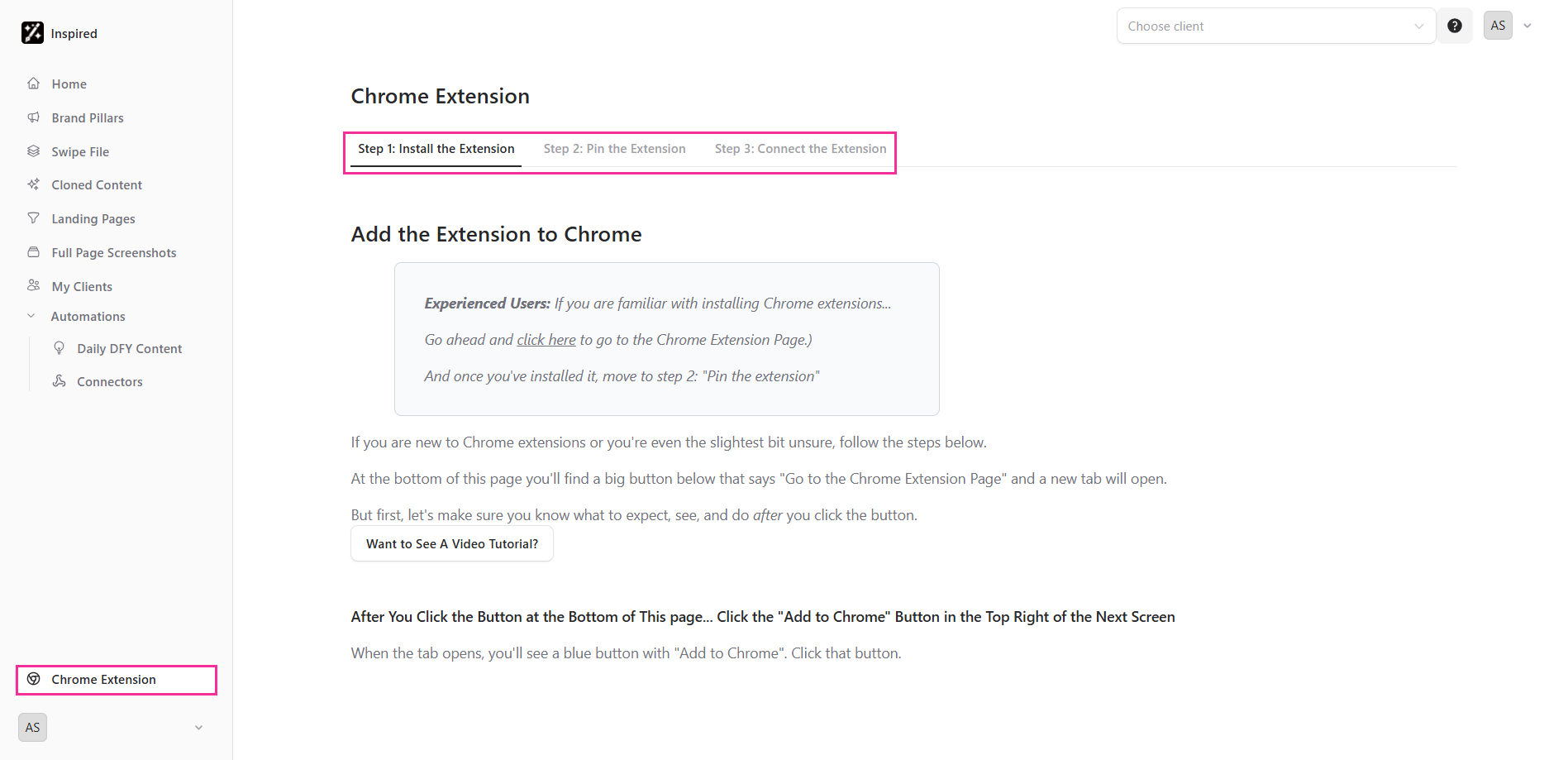
To get started with Inspired, please install and connect our Chrome Extension, Inspired Web Clipper, from the Chrome Web Store.
Sometimes, the Inspired Web Clipper might need a quick reset. If it’s not working properly, just visit your Chrome Extension section and try re-connecting it - see Step 3 for help!
Step 1: Install the Extension
Click Add to Chrome to proceed.
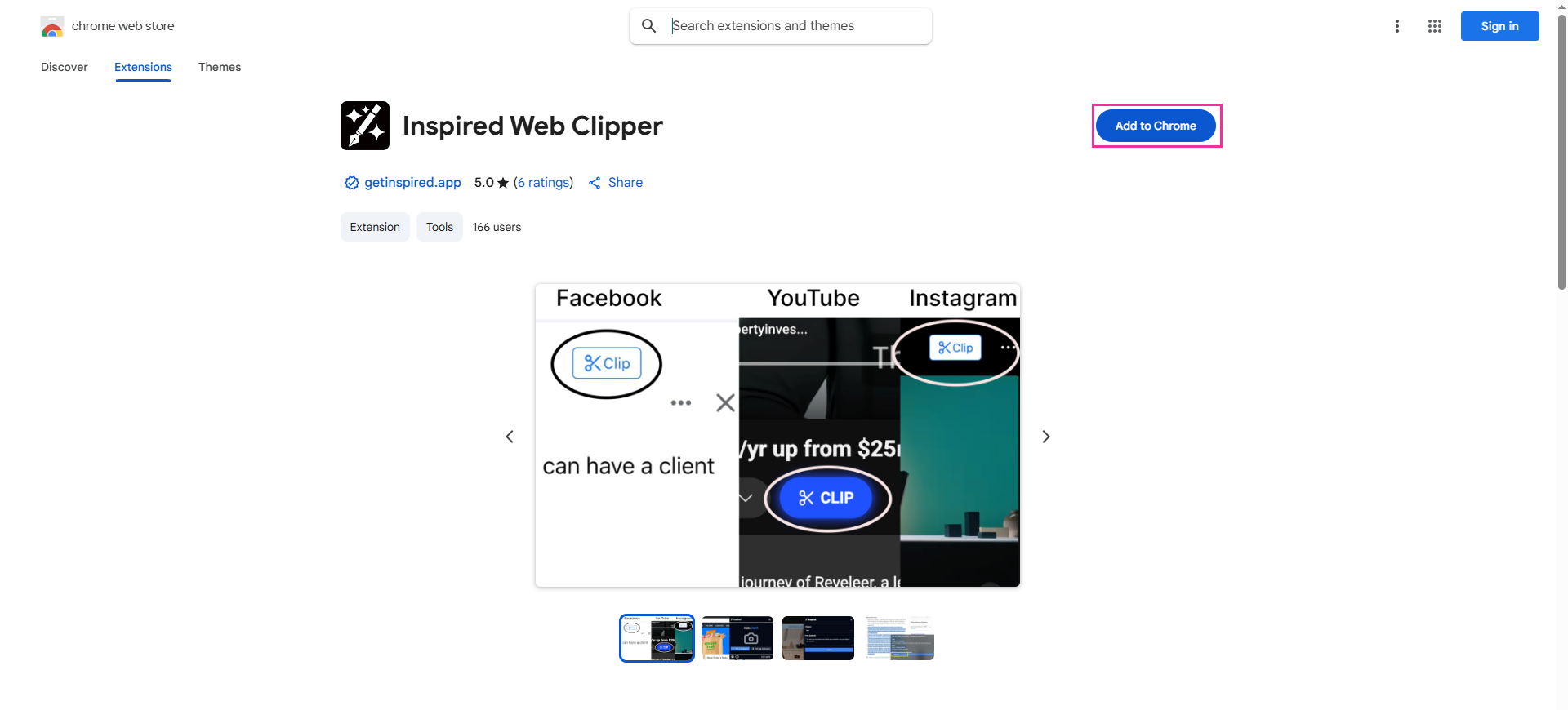
When a confirmation prompt appears asking if you want to add the Inspired Clipper, click Add extension.

Step 2: Pin the Extension
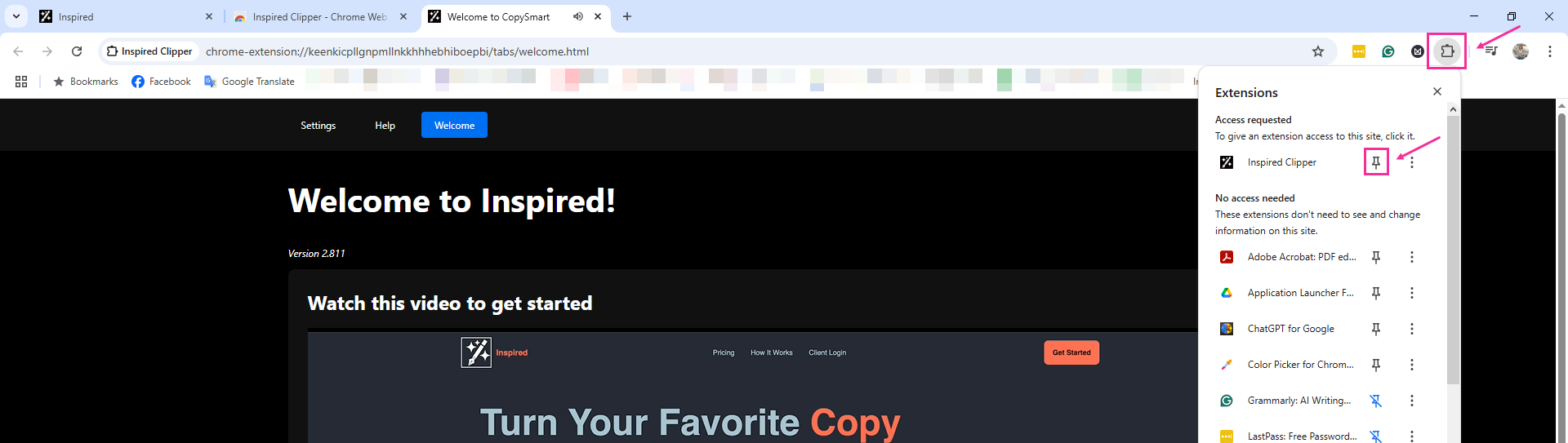
Next, pin the extension to your Chrome toolbar by clicking the extensions icon (the puzzle piece), then selecting Pin next to Inspired Clipper. This ensures you can easily access the extension when necessary.
Step 3: Connect the Extension
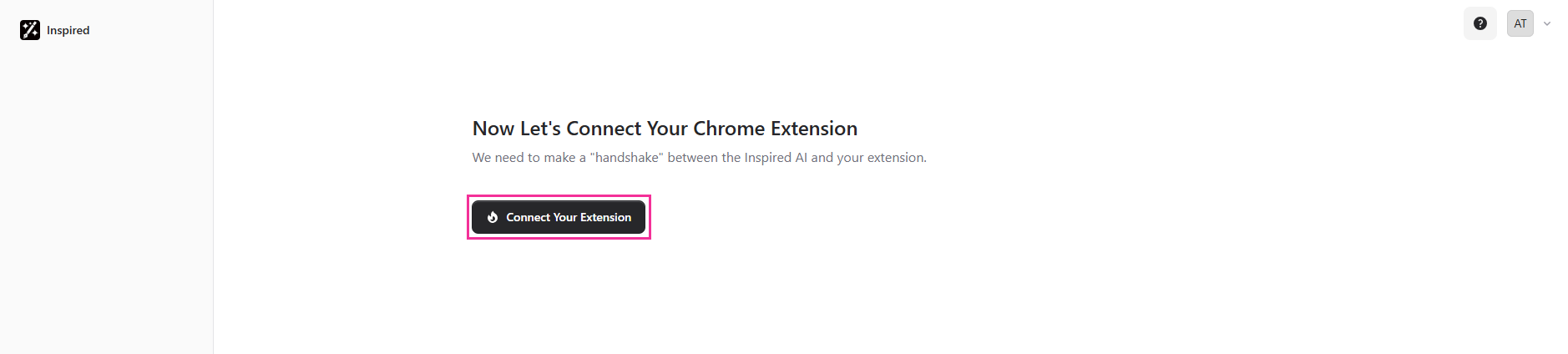
Finally, once you’ve installed and pinned the extension, you’ll need to make a “handshake” between the Inspired App and the extension. To do this, just click Connect Your Extension.
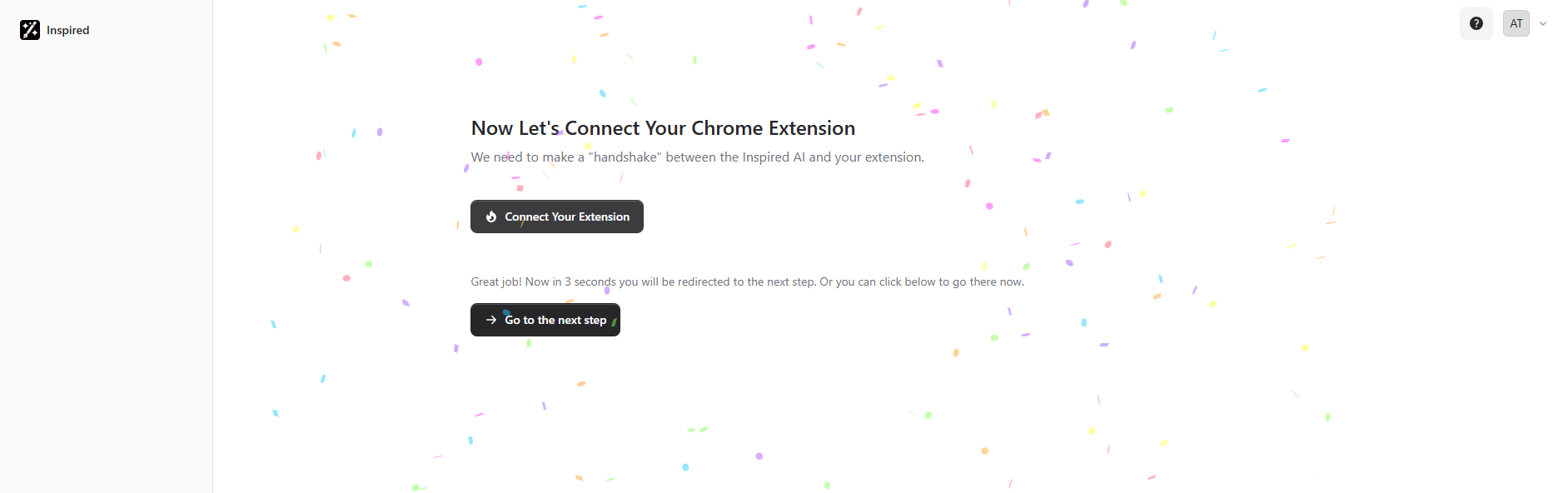
You will see confetti when the connection is successful!
If you ever need to, you can re-install, re-pin, or re-connect the extension anytime from your Chrome Extension tab. The 3 steps will always be there to guide you.
Watch this quick video from our founder, Jack Born, for a step-by-step guide.